Skip to content
MetaTrader 5 is a free multi-asset trading terminal, and you can install it and be watching live charts on a demo account within about ten minutes. Do this first: download MT5 or open a broker demo account right now, before reading another paragraph. Everything else in this guide, from the Market Watch panel to the MQL5 documentation behind automated trading, builds on that one step.
- Download the terminal or use a broker’s demo login screen.
- Practice order entry and chart reading with zero risk.
- Run the Strategy Tester before you ever touch a live Expert Advisor.
- Cubo Markets and other brokers both support the same MT5 workflow described here.
Key Takeaways
Learning MetaTrader 5 comes down to mastering four things in order: the interface, chart setup, manual order placement, and only then automated trading through the Strategy Tester.
| Point | Details |
|---|---|
| Start on demo | Open a demo account with a virtual balance and practice for at least two weeks before funding real money. |
| Learn the four core panels | Market Watch, Navigator, Charts, and Toolbox handle nearly every task you’ll need as a beginner. |
| Save a chart template | Build your indicator and color setup once, then apply it to any symbol with one click. |
| Backtest before automating | Run every Expert Advisor through the Strategy Tester and forward-test on demo before going live. |
| Choose your execution partner carefully | Cubo Markets offers MT5 demo and live accounts with spreads starting from very low levels and fast order execution. |
Table of Contents
- MetaTrader 5 Tutorial: Downloading, Installing, and Opening a Demo Account
- How Is the MT5 Interface Organized?
- How Do You Set Up and Save a Chart Template?
- How Do You Place Your First Trade in MT5?
- Which Indicators and Drawing Tools Should You Learn First?
- How Do Expert Advisors and the Strategy Tester Work?
- Trading MT5 on Mobile and in a Browser
- Real-World Readiness: Tips and Cubo Markets Proof Points
- Common MT5 Errors and How to Fix Them
- A Beginner Mistake Worth Avoiding
- Getting Set Up on MT5 With Cubo Markets
- Frequently Asked Questions
- Sources
MetaTrader 5 Tutorial: Downloading, Installing, and Opening a Demo Account
You can get MT5 three ways: the MetaQuotes website, a broker-branded installer, or the web terminal that runs in your browser. The broker-branded version is usually the smartest pick for beginners because it comes pre-configured to connect to that broker’s servers, skipping a step that trips up a lot of first-timers. The web terminal trades convenience for a few advanced features, but it’s a solid option if you’re on a locked-down work computer.
- Download the installer for Windows or macOS and run it. Installation takes under two minutes on most machines.
- Launch MT5. If a login window doesn’t appear automatically, go to File > Open an Account.
- Search for your broker’s name, or select “MetaQuotes Demo” to practice with a generic server.
- Choose demo account, set a virtual balance (most beginners start with a virtual balance), and pick your base currency.
- Enter the login and password MT5 generates, then confirm you’re connected in the bottom right corner of the terminal.
If the terminal misbehaves later, MT5 stores its settings and logs in a Data Folder accessible from File > Open Data Folder, which is worth knowing before you ever need it.
Pro Tip: Trade the demo account for at least two weeks before funding anything real. It costs you nothing and it’s the fastest way to learn the platform’s quirks without paying tuition in real losses.
How Is the MT5 Interface Organized?
Four panels do almost all the work, and once you can find them blind, the platform stops feeling foreign.
- Market Watch (left side) lists tradable symbols. Right-click and select “Symbols” to search for instruments not shown by default, and double-click any symbol to see its bid, ask, and contract specifications.
- Navigator shows your connected accounts, built-in indicators, Expert Advisors, and a direct line to the MetaTrader Market and Code Base for downloading more tools.
- Charts are where you’ll spend most of your time. Open a new one from Market Watch, switch timeframes along the top toolbar, and hover your cursor to pull up exact price and time values in the Data Window.
- Toolbox (bottom panel) holds your open trades, account history, and the Experts/Journal tabs, which log every error message the platform throws.
Learning this layout is really the whole first half of any MetaTrader 5 guide worth reading.
How Do You Set Up and Save a Chart Template?
A clean chart setup you can reuse saves you from rebuilding the same indicators every time you open a new symbol. Start simple, get comfortable, then layer on complexity.
- Right-click the chart and pick a candlestick or bar style, then set your preferred colors under Properties > Colors.
- Choose a timeframe. MT5 gives you 21 to pick from, which is more granularity than most beginners will ever need at once, according to the official charting documentation.
- Add an indicator or two from Navigator. A 20-period moving average paired with RSI is a common, uncomplicated starting combination.
- Save your setup by right-clicking the chart and selecting Template > Save Template, then apply it to any new chart in one click.
If a saved template suddenly shows a blank space where an indicator used to be, it’s usually referencing a custom indicator you haven’t installed on that machine. And if you’re moving a template from MetaTrader 4, don’t expect it to load cleanly. MT4 and MT5 use different compiled indicator formats, so templates built for one rarely survive the jump to the other without rebuilding.
Pro Tip: Hold Ctrl while dragging a symbol from Market Watch onto a chart, and MT5 applies your default template instantly. It’s the fastest way to reset a cluttered chart.
How Do You Place Your First Trade in MT5?
Press F9, or click the “New Order” button on the toolbar, and the order ticket opens on top of your chart. This is where volume, order type, and risk controls all live.
- Pick your symbol, set the volume in lots (0.01 is one micro lot, the smallest size most brokers allow), and choose market execution for an instant fill or a pending order to trigger at a future price.
- Set your stop loss and take profit directly in the order window, or drag the horizontal lines on the chart after the trade is open. Never skip the stop loss while you’re still learning position sizing.
- Understand that market orders can experience slippage, a small gap between the price you clicked and the price you actually got, especially during news releases. The execution mode your broker uses (Instant, Market, Exchange, or Request) determines how much of that gap you’ll feel, as the ForexLive beginner overview of MT5 explains.
- Once filled, your position shows up under the Trade tab in Toolbox. Right-click it to modify or close, and check the History tab afterward to see your realized profit or loss.
Which Indicators and Drawing Tools Should You Learn First?
MT5 ships with dozens of built-in indicators split into trend, oscillator, volume, and Bill Williams categories, plus a full set of drawing tools. Trying to learn all of them at once is exactly how beginners end up with a chart nobody can read.
- Add a moving average to smooth out price noise and spot the general direction.
- Add RSI to gauge whether a market looks overbought or oversold, using the standard 70 and 30 levels as rough guides.
- Bollinger Bands show volatility by widening and narrowing around price, useful for spotting when a move is stretching too far too fast.
- Use the trendline and horizontal line drawing tools to mark support and resistance zones, then save that annotated setup in your chart template.
Resist the urge to stack five indicators on one chart. Reading raw price action first will teach you more than any indicator combination will.
How Do Expert Advisors and the Strategy Tester Work?
You’ll find thousands of free and paid options in the MetaTrader Market and Code Base, both accessible from the Navigator panel.
- Drag an EA onto a chart, enable AutoTrading in the top toolbar, and confirm the EA’s settings match the symbol and timeframe it was built for.
- Before risking anything, run it through the Strategy Tester (View > Strategy Tester), selecting the EA, symbol, timeframe, and a historical date range.
- Review the results for profit factor and maximum drawdown, two of the metrics that matter most for judging whether a strategy survives real market swings.
The MQL5 documentation is blunt about the order of operations here: learn to read a chart manually before you hand control to an EA, since most beginner losses trace back to running a strategy nobody understood in the first place. Forward-test on demo, and consider a VPS if you plan to run an EA around the clock.
Trading MT5 on Mobile and in a Browser
The mobile app, available for iOS and Android, and the web terminal both mirror most of the desktop experience, but not all of it. The official MetaTrader 5 user manual confirms mobile apps handle charting, indicators, and order management fine, but they cannot run Expert Advisors. The web terminal comes closer to full desktop functionality and works from any browser without installing anything.
- Use mobile for checking positions and setting price alerts between meetings.
- Use the web terminal when you’re on someone else’s computer.
- Reserve the desktop version for chart-heavy analysis and any EA you’re running.
Real-World Readiness: Tips and Cubo Markets Proof Points
Moving from demo to live trading goes smoother with a short checklist: complete your broker’s KYC verification, fund a small starting deposit rather than your full budget, place a handful of trades to verify execution matches what you saw on demo, and compare quoted spreads against what you were expecting.
Cubo Markets built its platform around the same execution quality beginners should be checking for elsewhere: spreads starting from very low levels, zero commission, and a track record of millions of executed orders processed on the platform.
Reliable execution isn’t a marketing line. It’s the difference between the trade you planned on your chart and the trade you actually got filled at.
- Run any EA through the Strategy Tester before it ever touches a live account.
- Rent a VPS if you want an automated strategy running while you’re away from your desk.
- Start small, verify everything, and scale up only once the numbers match your expectations.
Common MT5 Errors and How to Fix Them
Most beginner problems in MT5 come down to a handful of repeat offenders, and none of them require a reinstall to solve.
“No connection” or a red signal icon in the bottom corner usually means your firewall is blocking MT5, or you selected the wrong server during login. Check File > Open Data Folder to confirm you’re pointed at the right broker server, and whitelist the terminal in your firewall settings if the icon stays red after a restart.
“Trade is disabled” or a grayed-out order button typically means the market is closed for that symbol, or your account type doesn’t support that instrument. Check the symbol’s trading hours in its specification window before assuming something’s broken.
A missing indicator on a loaded template almost always means the template was built with a custom indicator that isn’t installed on your current machine. Reinstall the indicator from the Code Base or MetaTrader Market, or rebuild the template from scratch.
“Not enough money” when placing an order means your requested volume exceeds what your account’s free margin supports. Lower the lot size or check your leverage settings; this is one of the most common mistakes for beginners sizing their first few trades too aggressively.

An EA that won’t run is often just AutoTrading being switched off. Check the toolbar toggle first, then confirm the EA’s inputs match the chart it’s attached to, before digging into anything more complicated.
Slow chart loading on older symbols can happen when you’re requesting a long history on a low timeframe. Right-click the chart and select “Refresh” or adjust the number of bars in Tools > Options > Charts.
A Beginner Mistake Worth Avoiding
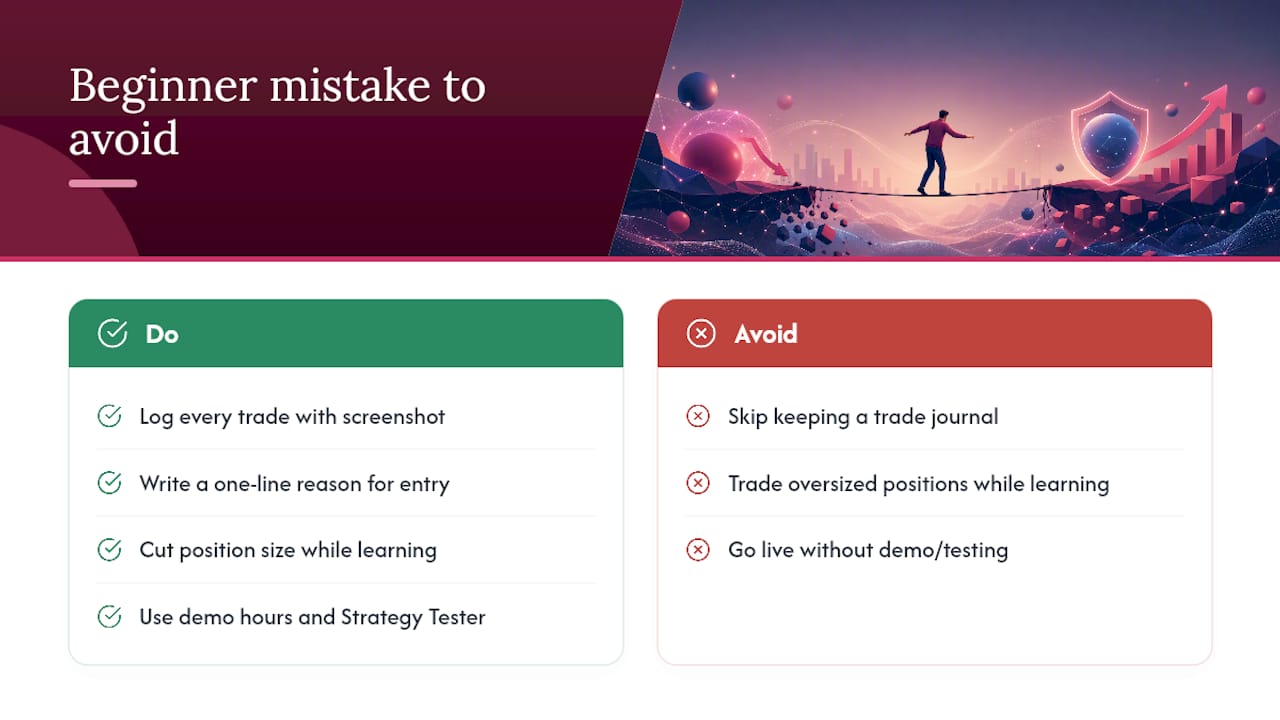
The most common rookie mistake isn’t a bad strategy. It’s skipping the trade journal and trading too large a size while still learning where the buttons are. Log every trade with a screenshot and a one-line reason for entering, and cut your position size until that habit sticks. Put in the demo hours, lean on the Strategy Tester before going live, and the rest of this platform gets easier fast.
Getting Set Up on MT5 With Cubo Markets
If you’re ready to move past the demo screen, Cubo Markets gives you a direct path to real MT5 trading with the execution quality this guide has been describing throughout: spreads starting from very low levels, zero commission, and fast order fills across Forex, indices, commodities, stocks, and crypto CFDs.

You can open a demo account or live trading account in a few minutes and connect straight to the MetaTrader 5 platform using the exact steps covered above. Before funding anything, complete your KYC verification and confirm the account type is available in your region. Once you’re set up, start on demo, run your strategy through the Strategy Tester, and move to live trading only once your execution checks match what you expected.
Frequently Asked Questions
Is MetaTrader 5 free to download and use?
Yes. The terminal itself is free for Windows, macOS, mobile, and web. You only need a broker account, demo or live, to connect it to real market data and place trades.
Can I practice trading in MT5 without risking money?
Yes. Every MT5 installation supports a demo account with a virtual balance, and it’s the recommended starting point for anyone new to the platform.
What’s the difference between MT4 and MT5 for a beginner?
MT5 supports more asset classes, more timeframes, and a more advanced Strategy Tester. Templates and custom indicators generally don’t transfer between the two platforms without rebuilding them.
Do I need to know MQL5 to use Expert Advisors?
No. You can download ready-made EAs from the MetaTrader Market or Code Base without writing any code, though understanding the basics helps you judge whether an EA’s logic makes sense before trusting it with real money.
Can I trade on my phone with MT5?
Yes, but the mobile app doesn’t support Expert Advisors. Use it for monitoring positions and setting alerts, and switch to desktop when you need to run automated strategies.
This article is general information, not a substitute for advice from a qualified financial advisor. Consult a qualified financial professional about your own circumstances before acting on anything here.
Sources
- Getting Started – MetaTrader 5 Help
- What is MT5: A beginner’s guide to MetaTrader 5 trading — TradingView / ForexLive